Who Came to Visit?
This year's Halloween was a Saturday and I had a hunch it would be a busy one. Being the sad act that I am, I rapidly coded up a web application to count the number of visitors to our alien-themed yard haunt.
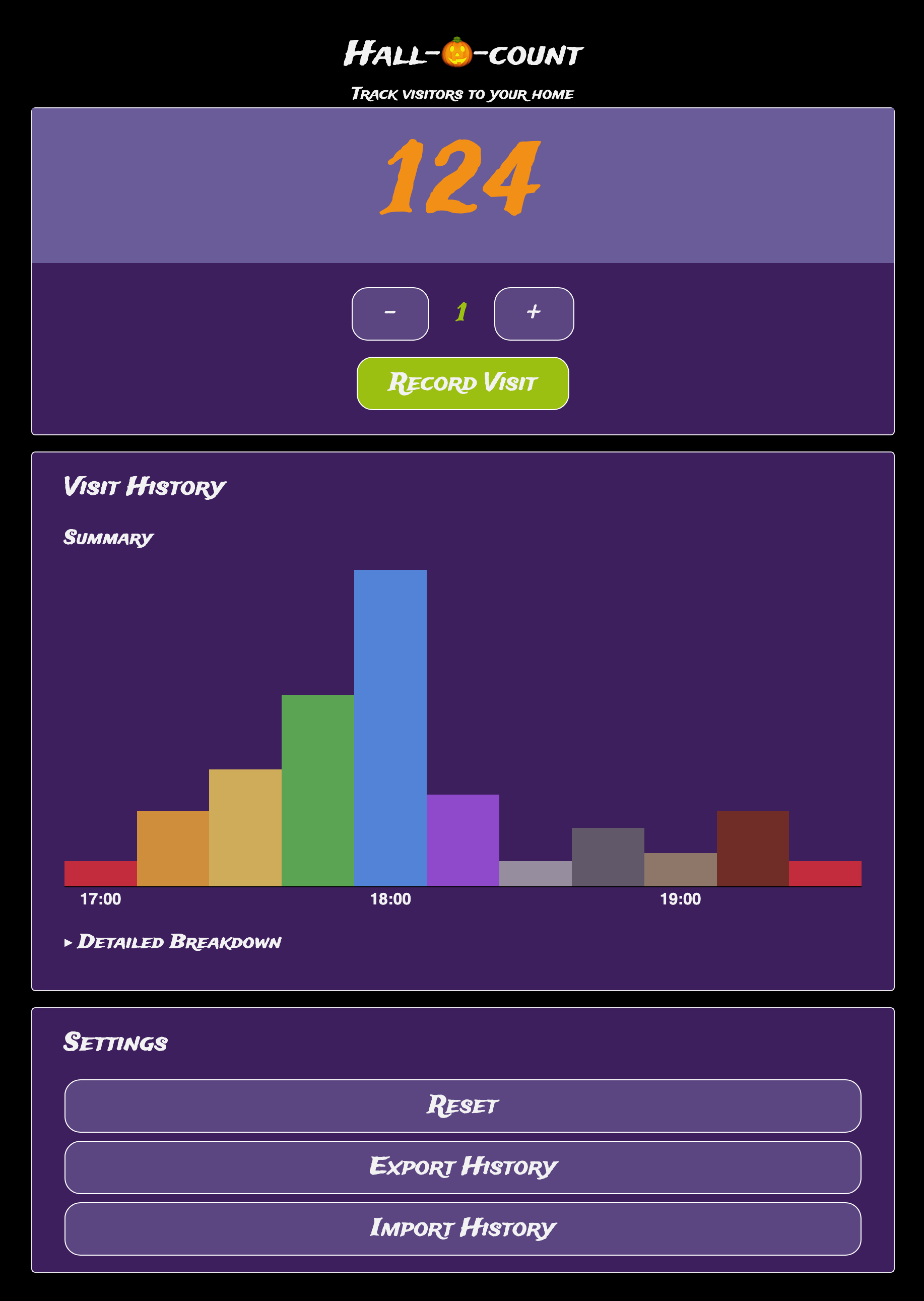
Try it yourself - you can also download and import my 2026 data into the application to replicate my day.
The goal of this project was not only to count the raw number of visitors, but also to understand the distribution of those visits over the evening. Where were the busy times? I mean, if you're going to be counting you might as well go the whole hog and track their times, too.
2026 was indeed a bumper year, we had a total of 124 trick-or-treaters - up from 68 in 2025. Since we moved in here in 2023, the numbers have quadrupled. We've also noticed more Halloween decorations around the estate, which I should assume is due to changing demographics and not my corruptive influence. But we'll never know.
Getting Started
Look, I'm lazy, and I was building this at pace, so I used the base styles of my Idler game and duplicated the hosting method using Gitlab Pages. I use vite to build the application and run it locally.
There's a couple of Gitlab-Pages-specific stuff I need to do. The Vite config needs to specify ./ as the base path to avoid CORS errors on Gitlab.
import { defineConfig } from 'vite';

export default defineConfig({
   base: './'
});
As by convention Vite takes the static assets in the public/ directory, alongside your src/ code and index.html in the root directory and bundles it all into a dist/ directory, I need to instruct Gitlab to use this dist/ directory. By default, Gitlab Pages looks at the public/ folder.
image: node:latest
pages:
  script:
    - npm install
    - npm run build
  artifacts:
    paths:
      - dist
  rules:
    - if: $CI_COMMIT_REF_NAME == $CI_DEFAULT_BRANCH
  pages:
    publish: dist
This is why having reusable templates to quickly get started on new projects is vital. Personally, I find that getting over the hump of setting everything up is the most difficult part of a project. Oftentimes that frictional barrier is the difference between doing something and not doing something, and there's so much complexity that trips you up. Anyway, we can build now!
Counting
I recalled a post by Ollie Williams about HTML button commands - this is a modern HTML technique for showing dialogs and popovers declaratively, rather than interactively using JavaScript. But you can create custom commands, which I thought would be ideal for creating bespoke increment/decrement buttons.
<form id="form">
  <div class="counters">
    <button
      type="button"
      commandfor="visitor"
      command="--decrement"
    >-</button>
    <input
        type="number"
        id="visitor"
        min="1"
        max="20"
        step="1"
        value="1"
        required
    >
    <button
      type="button"
      commandfor="visitor"
      command="--increment"
    >+</button>
  </div>
  <div class="options">
    <button
      type="submit"
      id="submit"
    >Record Visit</button>
  </div>
</form>
This is just a HTML form! Note the use of a standard <input type="number"> and a <button type="submit">. It's amazing what you can do with native HTML forms these days. The additional two buttons for incrementing and decrementing the input field are placed either side. By using the commandfor attribute to reference the id of the input field and the command attribute to specify the name of the command, I have instructed the browser to raise the command on the target element. Additionally, these buttons are nested in a form and so require a type="button" attribute to prevent the default form submission behaviour. The amount of JavaScript required to detect the raised command and taken an action is incredibly minimal:
const numberInput = document.getElementById('visitor');
numberInput.addEventListener("command", (event) => {
  if (event.command === "--increment") {
    numberInput.stepUp();
  } else if (event.command === "--decrement") {
    numberInput.stepDown();
  }
});
I use a CSS declaration to remove the browser's built-in step buttons. I don't like them.
input[type="number"] {
  appearance: textfield;
}
Handling the submit event in JavaScript is standard behaviour at this point. Firstly, HTML forms are designed to send the formdata to a server, but I'm handling everything in JavaScript as a 'single page app', so event.preventDefault() stops that behaviour. Traditionally one would need to take the input field's value and parse a Number, but for number-typed inputs there's a modern, easier way: valueAsNumber.
const form = document.getElementById('form');
form.addEventListener('submit', (event) => {
  event.preventDefault();

  const value = numberInput.valueAsNumber;
  if (!Number.isFinite(value) || value <= 0) {
      return;
  }

  // Update total
  const total = getTotal() + value;
  setTotal(total);
  const history = getHistory();
  history.push({
      timestamp: new Date().toISOString(),
      value: value
  });
  setHistory(history);

  updateUI();
});
Local Storage
Once the inputted number is validated, I add it to the running total and create a new piece of history data.
For this to run as a single page application, and to be tolerant of browser refreshes, I opted to use Local Storage to track two pieces of information:
- The running total of visitors
- A history log, capturing each event as a
timestamp,valuetuple.
To keep the code clean I created a separate wrapper module around local storage. This keeps the interactions with the native APIs encapsulated and handles persisting and parsing data into the correct types.
const TOTAL_KEY = 'hallocount:runningTotal';
const HISTORY_KEY = 'hallocount:submissionHistory';

export function getTotal() {
    return Number(localStorage.getItem(TOTAL_KEY)) || 0;
}

export function setTotal(value) {
    localStorage.setItem(TOTAL_KEY, value);
}

export function getHistory() {
  return JSON.parse(
    localStorage.getItem(HISTORY_KEY) || '[]'
  );
}

export function setHistory(history) {
  localStorage.setItem(HISTORY_KEY, JSON.stringify(history));
}
Note that in the form's submit handler, I'm setting a new total and updating the history log with a new event. The final call is to updateUI(), which is a helper function that updates all the elements on screen. I also call this function on app startup, so that the UI retrieves the current values out of storage and remains fresh.
Charting
I took inspiration from Google Map's Busy Areas functionality to display a simple column chart visualisation. I bucket the data into quarter-hour groupings. Charts.css is a semantic and pure CSS charting solution that is ideal for this use case - just rendering a simple non-interactive chart with minimal overhead.
I start by declaring an empty table. This holds the chart data and is dynamically populated when updateUI() is called:
<div id="graph">
  <table class="charts-css column hide-data show-primary-axis show-labels labels-align-block-start">
    <tbody id="chart-entries"></tbody>
  </table>
</div>
Charts.css uses utility classes to customise the visualisation. Here, I'm hidng the data labels as I'm more interested in the shape of the data, and only request that the X axis is shown, with its labels.
I encapsulated the chart analysis into an analyse() function, which is called by updateUI().
Firstly, I loop over the data to build up a mapping of fifteen-minute buckets to events. This will produce a structure that looks something like:
{
  '17:00': {
    time: '17:00',
    visitors: 3
  },
  '17:15': {
    time: '17:15',
    visitors: 1
  }
}
I then flatten this map into an array, sorted chronologically.
Finally, for each map entry I create a new row in the table with two cells:
- a
<th>for the x-axis value - a
<td>for the y-axis value
Charts.css requires labels to have the scope="row" attribute set. To reduce visual clutter I also opted to only show axis labels for the on-the-hour labels, so I needed to conditionally add the class hide-label to the <th> element appropriately. The size of a column is set using the --size CSS variable on the <td> element. I represent this as a proportion. When building up the 15-minute buckets I also track the largest encountered value. This then lets me calculate the size ratio: visitors / max. CSS takes care of the rest!
function analyse(history = []) {
  // Clear existing entries
  const chartEntries = document.getElementById('chart-entries');
  chartEntries.replaceChildren();

  const buckets = new Map();
  let max = 0;

  history.forEach(entry => {
      const timestamp = new Date(entry.timestamp);

      const hour = timestamp.getHours();
      const minute = Math.floor(timestamp.getMinutes() / 15) * 15;

      const key =
          `${String(hour).padStart(2, '0')}:` +
          `${String(minute).padStart(2, '0')}`;

      // Create bucket only when needed
      if (!buckets.has(key)) {
          buckets.set(key, {
              time: key,
              visitors: 0
          });
      }

      const bucket = buckets.get(key);

      bucket.visitors += entry.value;
      if (bucket.visitors > max) {
          max = bucket.visitors;
      }
  });

  const data = Array.from(buckets.values())
      .sort((a, b) => a.time.localeCompare(b.time));

  data.forEach(datum => {
      const item = document.createElement('tr');
      const hideLabel = datum.time.includes(':00') ? '' : 'hide-label';

      item.innerHTML = `<th scope="row" class="${hideLabel}">${datum.time}</th><td style="--size: ${datum.visitors/max}"><span class="data">${datum.visitors}</span></td>`;
      chartEntries.append(item);
  });
}
Downloading Data
And for my last trick, I added the ability to export your data to a JSON file. It's always nice to have a local backup!
Admittedly, ChatGPT helped me with this part. All I'm doing is pulling the data out of local storage using my helper methods, stringify-ing it and then representing it as a JSON Blob.
To trigger a download is a case of temporarily adding a download link to the body of the HTML page, clicking on it, and then cleaning it up. All the user needs to do is click the 'Export History' to trigger this behaviour.
const exportBtn = document.getElementById('export');
exportBtn.addEventListener('click', () => {
    // Create downloadable file
    const exportData = {
        total: getTotal(),
        history: getHistory(),
        exportedAt: new Date().toISOString()
    };
    const json = JSON.stringify(exportData, null, 2);
    const blob = new Blob([json], {
        type: 'application/json'
    });

    // Create clickable link and invoke it
    const url = URL.createObjectURL(blob);
    const link = document.createElement('a');
    link.href = url;
    link.download = `hallocount-${new Date().toISOString().slice(0, 10)}.json`;
    document.body.appendChild(link);
    link.click();
    document.body.removeChild(link);

    // Release object URL
    URL.revokeObjectURL(url);
});
That's a Wrap
This was fun to build and worked flawlessly on the night and I'm really happy with the outcome. It's good to flex the coding muscles now learn some new techniques. My career has taken my away from web development over the past few years and returning to the platform I'm repeatedly impressed about how powerful native HTML is.
The app is available for use - there's no tracking, no advertising, no cookies. Your data's yours. The source code is on Gitlab, too. Any issues, please get in touch. Enjoy!